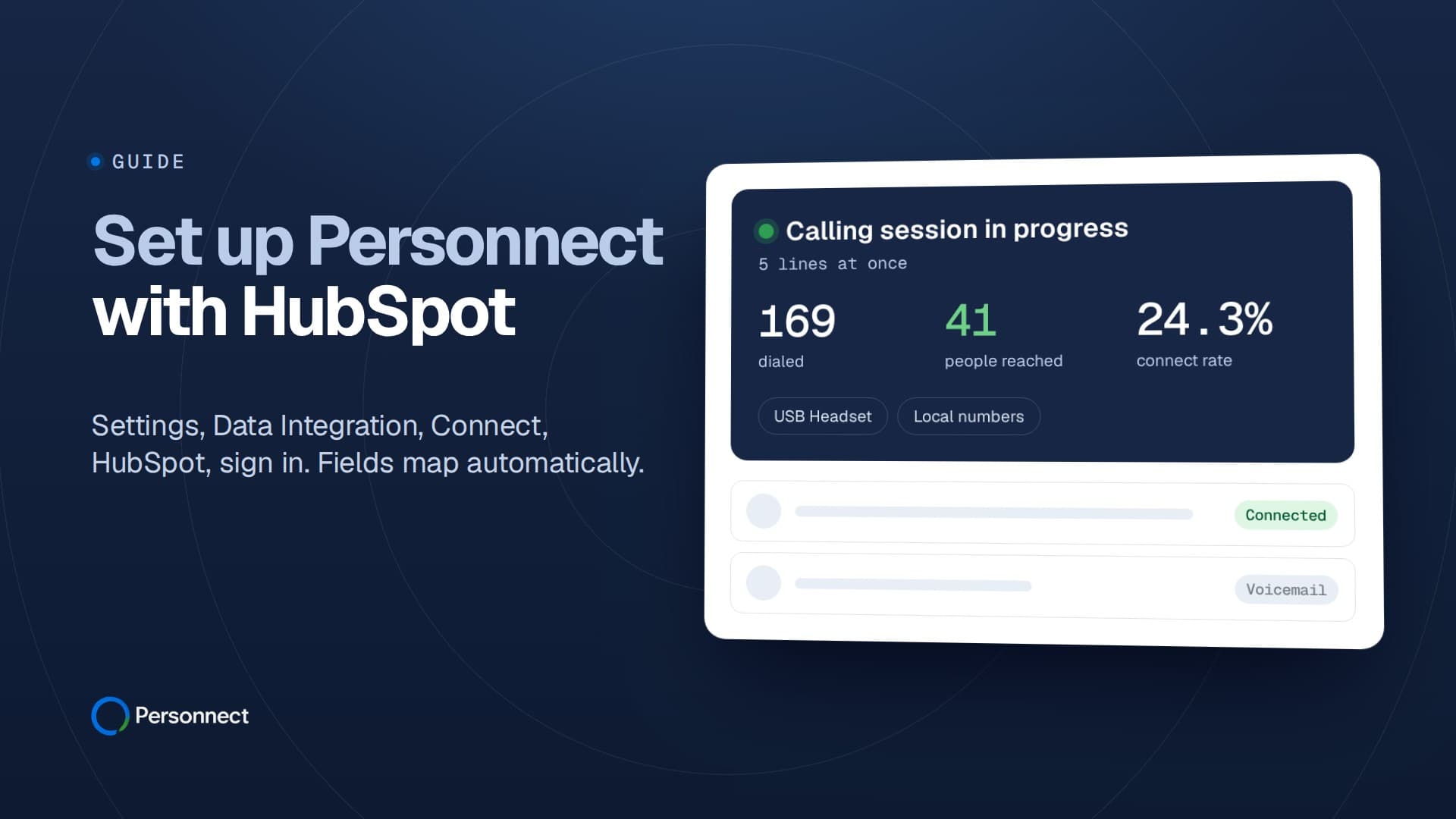
In Personnect, go to Settings, then Data Integration, click Connect, pick HubSpot and sign in to your HubSpot account. That sign-in is the entire setup: every field is mapped automatically and the connection is configured for you, so there is no field mapping to plan and no second screen to work through.
Key Takeaways
- Connecting HubSpot takes four clicks and one HubSpot sign-in, with fields mapped automatically and nothing left to configure.
- Sign in with a HubSpot user who holds Super Admin or App Marketplace permissions, and pick an account that will stay with the company.
- After each call, its summary, transcript and outcome are logged and synced to HubSpot, and recordings are kept for a year.
- One test call, checked on the contact's timeline and on HubSpot's calls index, confirms the connection before a full session.
- Teams on another CRM use CSV import and export or a direct integration on request, and teams with no CRM can upload a list and start.
What do you actually click to connect HubSpot?
Open Settings, then Data Integration, click Connect, choose HubSpot and sign in with your HubSpot login. Once you're signed in, the work that usually follows an integration (matching fields, picking sync directions, deciding what gets written where) has already been done for you.
The table splits the job between what a HubSpot admin does and what happens without them.
| Task | Owner | Effort |
|---|---|---|
| Open Settings, then Data Integration | You | Two clicks |
| Click Connect and choose HubSpot | You | Two clicks |
| Sign in to HubSpot | You | One login |
| Map fields | Automatic | None |
| Configure the sync | Automatic | None |
RevOps teams often brace for a project when a new tool meets the CRM, and the next section shows why. With this connection, the admin's part ends at the HubSpot login screen.
Why does connecting a dialer to a CRM usually take longer?
Many integrations hand you a configuration job after the login: sync direction, filters and field mappings. HubSpot's own data sync guide describes that work plainly, saying that after you connect a supported app "you can configure a one-way or two-way sync to automatically update records across both systems" (HubSpot, 2026).
The same guide explains that when its sync engine matches records, "it combines all the information it has (the records' field values, the filters, field mappings, sync history, etc.)" before deciding what to do. Each of those inputs is a choice somebody has to make and later maintain. It also warns that "Syncs with millions of records may take several days to complete." None of that is a flaw. It's simply what a configurable sync involves.
Why does that setup time matter to a sales team?
Admin time comes out of selling time. In Salesforce's sales research, reps spent only 28% of their week on actual selling, with deal management and data entry eating most of the rest (Salesforce, 2023). The same study counted an average of 10 tools used to close deals.
Tool sprawl wears people down too. That research found 66% of sales reps saying they feel overwhelmed by how many tools they use, and 94% of sales organizations planning to consolidate their tech stack over the following year (Salesforce, 2023). A dialer that adds a configuration project to that pile is a harder sell internally than one that adds a login.
Which HubSpot user should sign in?
Use a HubSpot user who is allowed to connect apps and who isn't going anywhere. HubSpot states: "You must be a Super Admin or have App Marketplace permissions to connect an app in HubSpot" (HubSpot, 2026). If the person running setup lacks that permission, sort it out before you start.
What does the App Marketplace permission cover?
It covers app installs from inside and outside HubSpot. HubSpot's permissions guide says to "toggle the App Marketplace access switch on to let the user install apps from the HubSpot Marketplace and third-party websites" (HubSpot, 2026). A Super Admin or a user with permission to add and edit users can switch it on.
Why does the account owner matter later?
HubSpot keeps a record of who connected each app. Its Connected Apps page lists, for every app, "Installed by: the HubSpot user who installed the app" (HubSpot, 2026). If that's a contractor or someone about to leave, the integration ends up tied to an account nobody watches.
A shared ops or admin login is usually the safer choice. It keeps the connection with the team rather than with one person's seat, and it makes the Installed by column easy to read a year from now.
What lands in HubSpot after each call?
Every call's summary, transcript and outcome is logged in HubSpot and kept in sync, and recordings are kept for a year. That's the substance of a two-way sync: your HubSpot contacts feed the dialer, and what happens on the phone flows back to HubSpot without a rep typing notes.
HubSpot uses arrows to describe this on its app listings. Its Marketplace guide says "A single arrow signifies data syncing in one direction, while two arrows signify data syncing in both directions" (HubSpot, 2026). This integration is the two-arrow kind.
Why is call data worth syncing at all?
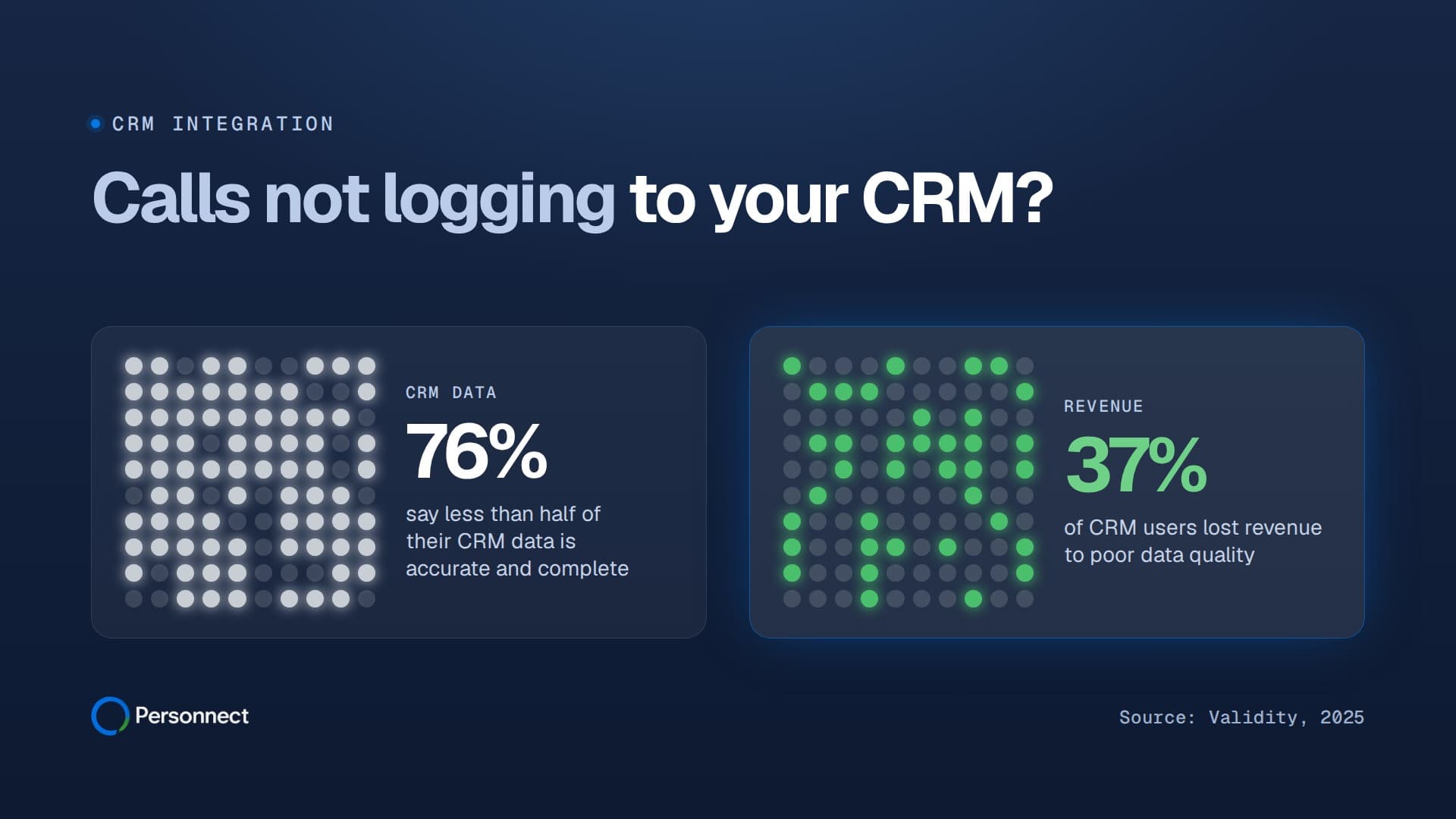
CRM data quality is a real worry for the people who run CRMs. In Validity's survey of more than 600 CRM admins, 24% said less than half of their data is accurate and complete (Validity, 2024). That's the kind of gap an automatic call log helps close, since no outcome depends on someone remembering to write it down.
The cost side is just as stark. The same survey found 31% of admins reporting that poor-quality data costs them at least 20% of their annual revenue (Validity, 2024). A call that happened but never reached the CRM is missing data in its purest form.
How do you confirm the connection with a test call?
Place one real call to a contact you own, then find it in HubSpot in two places: on the contact's timeline and on the calls index page. If it shows up in both, the integration is working end to end, and you can run a full session with confidence.
Where does a call appear on the contact?
Open the contact record and look at the activity timeline. HubSpot's guide explains you can view activities "in bulk on an index page or individually on a record's timeline under the default Activities tab" (HubSpot, 2026). The test call should sit there with its summary, transcript and outcome.
Where do all calls appear at once?
HubSpot's calls index shows them together. HubSpot's help article places it under CRM > Calls, reached from the More menu (HubSpot, 2026). The same page lists third-party call integrations among the calls it displays, and a call outcome column with values like Connected, Left voicemail and No answer.
How do you check the connection itself?
HubSpot's Connected Apps page shows the health of every integration. Its guide says to "navigate to Integrations > Connected Apps" in settings, where a Needs your attention section flags apps with an expired connection or a disconnected status and offers a Reconnect button (HubSpot, 2026).
The Connection insights tab goes a level deeper. Under Record Insights it shows which record types an app touched and whether records were created, updated, deleted or merged, and HubSpot states that "Activities from the past 30 days are displayed" (HubSpot, 2026).
| Check | Where | Expect |
|---|---|---|
| Test call | Contact timeline | Call logged |
| All calls | Calls index | Row with outcome |
| Status | Connected Apps | Connected |
| Activity | Record Insights | Calls created |
How do reps call HubSpot contacts once the dialer is connected?
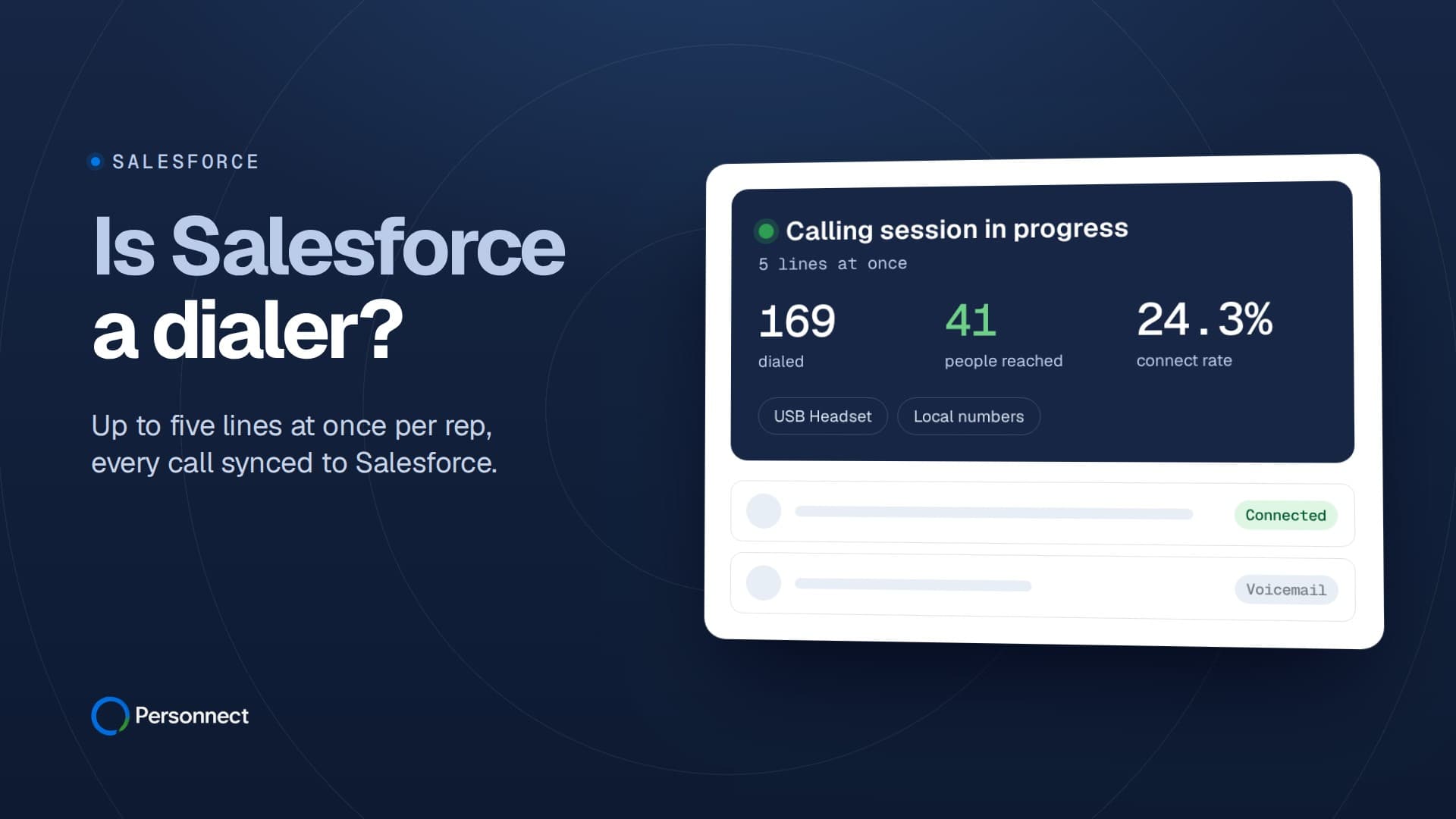
Reps call their HubSpot contacts from the dialer, and the results go back to HubSpot on their own. Personnect rings up to five lines at once per rep, connects the rep the moment a person answers with that contact's details on screen, and detects and skips voicemail, so a rep's time goes to conversations.
The parallel dialer page shows that flow in more detail. From the rep's side, there's one place to call from and one place where history lives: HubSpot. Managers keep reporting in HubSpot as before, since the summary, transcript and outcome of each call arrive there.
Parallel dialing does bring a brief pause when a call connects, while the line hands over to the rep. A short, clear greeting covers it, and it's worth rehearsing once with new reps so the first second of the call doesn't feel like dead air to the prospect.
What does a rep stop doing?
They stop logging calls by hand. With the outcome and transcript synced, the after-call note is already written. Unanswered calls still verify your contacts as part of calling, so even a session full of no-answers tells the team something about the list.
If you have wondered why calls from another tool sometimes go missing in the CRM, the guide to dialer calls not logging walks through the usual causes, from user mapping to phone number matching.
What if your team runs a different CRM, or none?
Native two-way integrations exist for HubSpot and Salesforce. Any other CRM works through CSV import and export, and a direct integration is available on request. The integrations page has the details for each route.
Teams without a CRM don't need one to start. Upload a list and Personnect works as your outbound CRM, with every call's summary, transcript and outcome logged against the contact. When the team later moves to HubSpot, the setup is the same four clicks and a sign-in described above.
Where can a sales leader read about the Personnect HubSpot integration?
The HubSpot integration page describes what reps see when a contact answers and what each call logs. It suits a sales leader who wants the overview, while this guide stays with the admin steps.
Before your first calling session
Run through a short sequence before reps start dialing. Confirm the person signing in has Super Admin or App Marketplace permissions in HubSpot, and that it's an account the company will keep. Then connect: Settings, Data Integration, Connect, HubSpot, sign in. There's no mapping step after that.
Place one test call to a contact you own. Find it on the contact's timeline, then on the calls index, and glance at Connected Apps to see a healthy status. If all three look right, the team can call from their HubSpot contacts and leave the logging to the sync.
Frequently Asked Questions
Do I need to map HubSpot fields myself?
No. After you sign in to HubSpot from Data Integration, all fields are mapped automatically and the connection is configured for you. There's no field mapping screen to fill in and no other step before reps can start calling from their HubSpot contacts.
Who in HubSpot can approve the connection?
A Super Admin, or any user with App Marketplace permissions. HubSpot says one of those is required to connect an app (HubSpot, 2026). If your own user lacks it, ask a Super Admin to switch on App Marketplace access for you.
How long can a manager go back and listen to a call?
A year. Personnect keeps call recordings for a year, and the summary, transcript and outcome of each call sit in HubSpot alongside the contact. A manager reviewing a deal months later can still read what was said and hear how it was said.
Does the HubSpot integration cost extra?
No. Every feature is included on the usage plan, which charges 8.5¢ per answered minute with no seat fees, no platform fee and unlimited users. Calls that ring out, are busy or fail cost nothing.
Sources
- HubSpot knowledge.hubspot.com/integrations/connect-and-use-hubspot-data-sync
- Salesforce salesforce.com/news/stories/sales-research-2023
- HubSpot knowledge.hubspot.com/user-management/hubspot-user-permissions-guide
- HubSpot knowledge.hubspot.com/integrations/manage-your-connected-apps
- HubSpot knowledge.hubspot.com/marketplace/install-apps-in-the-hubspot-marketplace
- Validity validity.com/resource-center/the-state-of-crm-data-management-in-2024
- HubSpot knowledge.hubspot.com/records/filter-activities-on-a-record-timeline
- HubSpot knowledge.hubspot.com/calling/review-calls-in-the-call-index